


Building a website used to require hiring a developer, designer, content writer and/or learning to code, or spending weeks watching tutorials. Not anymore. Thanks to artificial intelligence tools like ChatGPT, Claude, and Google Gemini, anyone — regardless of technical background — can now build a fully functional, professional-looking website in a single afternoon.
This guide walks you through every step, from securing your hosting to generating your content with AI. No jargon. No assumptions. Just clear, actionable steps you can follow right now.
What You’ll Need Before You Start
Before diving in, gather a few basics:
- A domain name (your website address, like www.yourbusiness.com)
- Web hosting (the service that puts your site on the internet)
- An AI tool account — ChatGPT, Claude, or Google Gemini (all have free versions)
- About 2–3 hours of your time
That’s genuinely it. Let’s build your website.
Step 1: Get Your Domain Name and WordPress Hosting
The first step is securing a home for your website on the internet.
Recommended hosting providers for beginners:
- Bluehost (bluehost.com) — beginner-friendly, includes a free domain
- SiteGround (siteground.com) — excellent support, fast performance
- Hostinger (hostinger.com) — affordable, easy to use
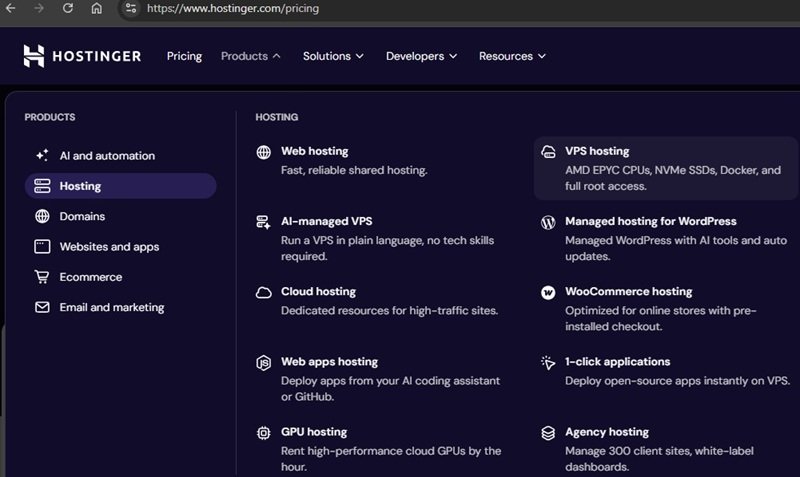
Here’s what to do:
- Go to hostinger.com (or your preferred provider)
- Click “Products” and choose the Managed hosting for WordPress plan (perfect for new websites with a blog)
- Search for your desired domain name. If it’s available, claim it free for the first year
- Complete the checkout process (basic plans typically run $2–$5/month on promotion)
- Follow the prompts — in a few clicks, a placeholder WordPress website will be installed on your domain.
WordPress is the platform your website runs on. It powers over 40% of all websites on the internet, and you don’t need to know a single line of code to use it.
Step 2: Choose a WordPress Theme
Think of a theme as the visual design of your website — the colors, layout, and fonts.
- Log into your WordPress dashboard (usually found at yourwebsite.com/wp-admin)
- In the left sidebar, click Appearance → Themes
- Click “Add New” and browse free themes
- Recommended beginner themes: Astra, Kadence, or Hello Elementor
- Click Install, then Activate
You now have a website with a real design. It won’t have your content yet — that’s where AI comes in.
Step 3: Open Your AI Tool of Choice
Now the exciting part begins. Open one of these tools in a new browser tab:
- ChatGPT → chat.openai.com
- Claude → claude.ai
- Google Gemini → gemini.google.com
All three have free tiers that work perfectly for this process. Sign up with your email if you haven’t already.
Step 4: Use AI to Write Your Website Content
This is where non-technical users often feel stuck — what do you actually write on a website? AI eliminates that problem completely.
Write Your Homepage
Type this prompt into your AI tool:
“Write professional homepage content for a website. My business is [describe your business in one sentence]. My target audience is [describe your ideal customer]. Include a compelling headline, a short subheading, a brief ‘about us’ paragraph, three key benefits of working with me, and a call-to-action button text. Keep the tone [friendly/professional/bold].”
Replace the brackets with your actual details. Within seconds, you’ll have polished homepage copy ready to paste into WordPress.
Write Your About Page
Use this prompt:
“Write an About page for my website. My name is [your name], I run a [type of business], and I started it because [your reason]. I want visitors to trust me and feel connected. Make it warm, personal, and around 200 words.”
Write Your Services or Products Page
“Write a Services page for my [type of business] website. My three main services are [list them]. For each service, write a short title, a two-sentence description, and who it’s best for. Keep it clear and persuasive.”
Write Your Contact Page
“Write a short, friendly Contact page for my website. Encourage visitors to reach out, mention that I respond within [your timeframe], and include placeholder text for a contact form.”
Repeat this process for any page you need. AI generates content in seconds that would take most people hours to write.
Step 5: Use AI to Help You Set Up Your Pages in WordPress
If you get confused at any point in WordPress, go straight back to your AI tool and ask for help.
Try prompts like:
“I’m using WordPress with the Astra theme. How do I create a new page and add text to it? Explain it like I’ve never used WordPress before.”
Or:
“How do I add a navigation menu to my WordPress website so visitors can click between my pages?”
AI tools like Claude and ChatGPT are excellent at giving step-by-step technical guidance in plain English. You don’t need to search through confusing forums or watch 45-minute YouTube videos — just ask.
Step 6: Add Images With AI Assistance
Every good website needs visuals. You have two easy options:
Option A — Free stock photos:
Visit Unsplash.com or Pexels.com and download high-quality, free images that match your business.
Option B — AI-generated images:
Use ChatGPT’s image generation (available on the Plus plan) or visit Adobe Firefly (firefly.adobe.com, free) and type a description of the image you need.
Example prompt for image generation:
“A warm, professional photo of a home office desk with a laptop, a notebook, and a coffee cup. Natural lighting. Clean and minimal aesthetic.”
Download your image and upload it to WordPress by going to Media → Add New.
Step 7: Use AI to Write an SEO-Friendly Page Title and Description
SEO stands for Search Engine Optimization — it’s how people find your website on Google. Don’t let the term intimidate you. Just ask AI to handle it.
Use this prompt for each page:
“Write an SEO-friendly page title and meta description for my [page name] page. My website is about [your business]. The title should be under 60 characters and the description under 160 characters. Make it compelling enough that someone would want to click on it.”
To add these to WordPress, install the free plugin Yoast SEO or Rank Math:
- Go to Plugins → Add New in your WordPress dashboard
- Search for “Yoast SEO” and click Install → Activate
- Each page will now have a section where you paste the title and description AI wrote for you
Step 8: Review, Refine, and Publish
Before hitting publish, do a quick review:
- Read through all your AI-generated content and personalize it — add your name, your real story, specific details that only you know
- Click through every page as if you’re a visitor — does it make sense? Is anything missing?
- Check that your contact information is accurate
- Make sure your site looks good on mobile — in WordPress, click Customize → Preview and switch to the mobile view
When you’re satisfied, your site is already live (WordPress publishes pages automatically once you click “Publish” on each one). Share your URL and start telling people about it.
Bonus: Keep Using AI to Grow Your Website
Building the site is just the beginning. AI can continue helping you:
- Write blog posts to attract visitors from Google
- Create social media captions that link back to your site
- Draft email newsletters for your subscribers
- Answer customer FAQs you can turn into a FAQ page
Every time you need new content or get stuck on a technical question, open Claude, ChatGPT, or Gemini and ask. These tools are available 24/7 and never get impatient with beginner questions.
Common Mistakes to Avoid
Don’t publish AI content without reading it first. AI is powerful, but it doesn’t know your specific story. Always add personal touches.
Don’t skip the mobile check. Over 60% of web browsing happens on phones. A site that looks great on desktop but breaks on mobile will cost you visitors.
Don’t obsess over perfection. A live, imperfect website is infinitely more valuable than a perfect one sitting in draft mode. Launch first, improve later.
Frequently Asked Questions
Can I really build a website with AI if I have no technical or coding knowledge?
Yes. With managed WordPress hosting, a free theme and an AI assistant like ChatGPT, Claude or Google Gemini, you never need to write code. The hosting provider installs WordPress for you, the theme handles the design, and the AI writes your page content and explains any WordPress step you get stuck on.
How much does it cost to build a website using AI?
You can start for very little. ChatGPT, Claude and Gemini all have free plans that are enough for writing website content, and plenty of free WordPress themes and plugins are available. Your main cost is hosting and a domain: entry-level WordPress hosting typically costs a few dollars a month on promotional pricing, often with a free domain for the first year.
Which AI tool is best for building a website: ChatGPT, Claude or Gemini?
All three work well for this process, and their free versions are enough to get started, so pick the one you find easiest to use. Your results depend more on your prompts than on the tool: give the AI clear details about your business, your audience and the tone you want, and ask it to revise until the copy sounds like you.
How long does it take to build a website with AI?
A simple small-business site with a Home, About, Services and Contact page can be set up in about two to three hours. Hosting and theme setup takes under an hour; generating, personalizing and publishing the content with AI takes